
Download Easy ISO Burn – Simple, Fast, and Secure ISO Burning Tool
Overview
Easy ISO Burn is a lightweight, no‑frills ISO burning utility designed for users who want to create CD, DVD, Blu‑ray, or HD‑DVD discs without navigating through endless menus or configuring obscure parameters. Built with a clean three‑step workflow, the application lets you select an ISO file, choose a target drive, and start burning with a single click. It supports a wide range of media formats including CD‑R, CD‑RW, DVD‑R, DVD‑RW, DVD+R, DVD+RW, Blu‑ray Disc, and HD‑DVD, making it a versatile solution for both home users and IT professionals. Unlike many competing tools, Easy ISO Burn writes data directly to the physical disc, eliminating the need for virtual drive emulation and reducing the risk of mounting errors. For power users, the program offers optional advanced settings such as driver selection, disc volume labeling, burn speed adjustment, and cache size configuration, allowing precise control over the burning process. Additionally, the software can create bootable discs, an essential feature for deploying operating systems or rescue environments. Security‑focused users will appreciate that the installer is digitally signed, the application runs without administrative bloatware, and regular updates are pushed through a secure channel to keep the tool compatible with the latest optical drives. Whether you need to archive software, distribute media, or prepare a bootable installation disc, Easy ISO Burn delivers a straightforward, reliable experience that respects both novice simplicity and professional depth.
Key Features
- Three‑step burning process – select ISO, choose drive, click “Burn”.
- Supports CD‑R, CD‑RW, DVD‑R, DVD‑RW, DVD+R, DVD+RW, Blu‑ray, and HD‑DVD media.
- Direct disc writing – no virtual drive mounting required.
- Bootable disc creation for operating system installations and recovery tools.
- Advanced options for professionals: driver selection, volume labeling, burn speed, and cache size.
- Lightweight installer under 3 MB, minimal system footprint.
- Secure digital signature and automatic update mechanism.
- Multilingual interface supporting English, Spanish, German, French, and Japanese.
- Compatibility with most Windows versions from Windows 7 to Windows 11.
- Free version available for personal use with optional paid upgrade for commercial licensing.
Installation & Usage Guide
Step‑by‑Step Installation
Downloading Easy ISO Burn is straightforward. Visit the official website, click the “Download for Windows” button, and save the EasyISOBurn_Setup.exe file to your computer. Run the installer; it will prompt for standard permissions to write files to the Program Files directory. The wizard walks you through a brief license agreement, a destination folder choice, and a final “Install” button. Because the installer is digitally signed, Windows SmartScreen will recognize it as safe, and you can proceed without disabling security features. After installation, a shortcut appears on the desktop and in the Start menu, allowing quick access.
Burning an ISO in Three Simple Steps
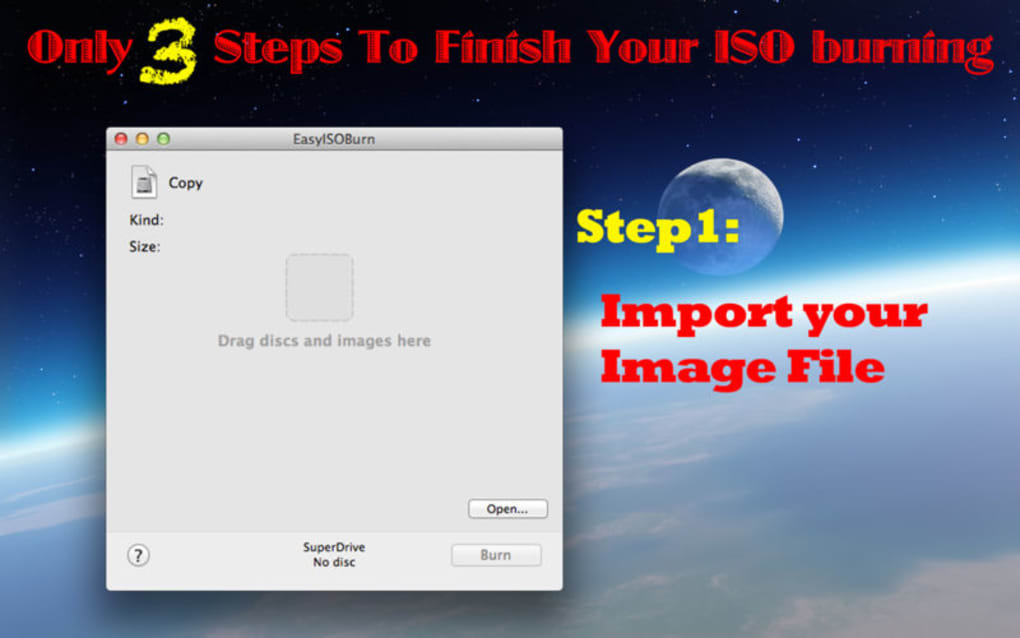
1. Launch Easy ISO Burn. The main window displays a large “Select ISO” button. Click it and browse to the location of your .iso file. The program validates the image and shows a preview of its contents.
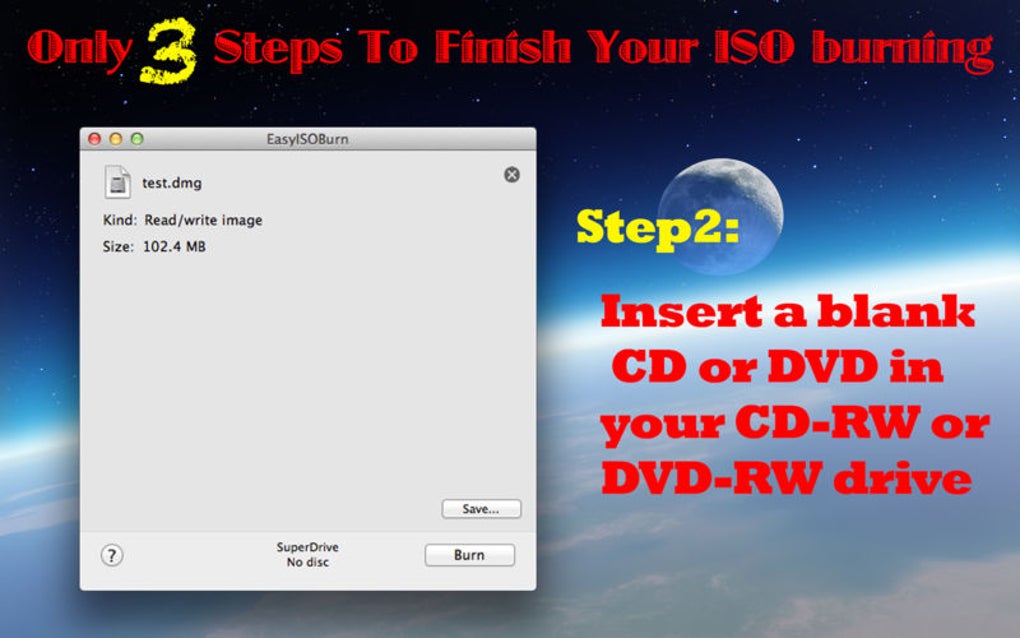
2. Insert a blank disc. The software automatically detects the inserted media type (CD, DVD, or Blu‑ray). If you have multiple optical drives, a drop‑down menu lets you choose the correct one.
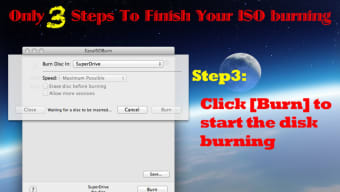
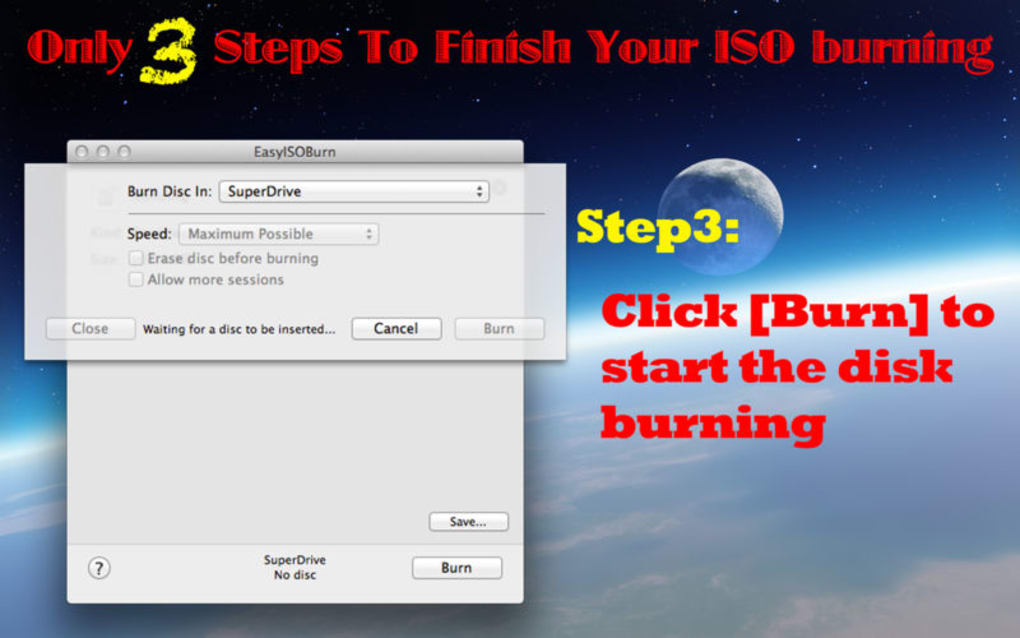
3. Start the burn. Press the bright “Burn Now” button. A progress bar appears, indicating the write speed, elapsed time, and estimated completion. You can pause or cancel at any point, and the program will safely eject the disc if you abort. Once the process finishes, Easy ISO Burn verifies the disc integrity and notifies you with a success message.
Advanced Settings for Power Users
If you need granular control, click the “Advanced Settings” link at the bottom of the window. Here you can select a specific SCSI or SATA driver, define a custom volume label (up to 32 characters), limit the burn speed to protect older media, and allocate cache memory for faster data transfer. These options are optional; the default configuration works perfectly for most scenarios, ensuring a smooth experience for beginners while still catering to technical users who demand precision.
Compatibility, Pros & Cons
Easy ISO Burn is built for Windows operating systems, specifically Windows 7, Windows 8/8.1, Windows 10, and Windows 11 (both 32‑bit and 64‑bit). The application requires .NET Framework 4.6 or later, which is included by default in recent Windows releases. For older systems, the installer will prompt you to download the required framework components. While the tool is optimized for modern optical drives, it also works with legacy CD‑ROM and DVD‑ROM devices, provided they support standard burning commands.
Pros
- Intuitive three‑step workflow eliminates confusion for new users.
- Direct disc writing reduces overhead and improves reliability.
- Supports a broad range of media, including Blu‑ray and HD‑DVD.
- Advanced options give professionals the flexibility they need.
- Small installation size and low memory usage.
- Secure updates and a signed installer protect against malware.
- Free for personal use with a clear upgrade path for commercial licensing.
Cons
- No native macOS or Linux version – Windows‑only.
- Lacks a built‑in ISO creator; you must obtain ISO files elsewhere.
- Limited customization of UI themes; the interface remains classic Windows style.
- Advanced settings are hidden, which may require users to explore documentation.
- Bootable disc creation supports only legacy BIOS boot, not UEFI‑only systems.
Frequently Asked Questions
Can Easy ISO Burn create bootable USB drives?
No. Easy ISO Burn focuses exclusively on optical media. For bootable USB creation, we recommend using complementary tools such as Rufus or the Windows Media Creation Tool.
Is there a limit to the size of ISO files I can burn?
The software adheres to the standards of each disc type. For example, a standard DVD‑R can hold up to 4.7 GB, while a dual‑layer DVD can hold up to 8.5 GB. If the ISO exceeds the capacity of the selected media, Easy ISO Burn will display an error before starting the burn.
Do I need an internet connection to burn an ISO?
No. After the initial download and installation, all burning operations occur locally. An internet connection is only required for checking updates or downloading additional language packs.
What happens if my burn fails midway?
Easy ISO Burn automatically aborts the process, ejects the disc, and provides a detailed error log. You can review the log to determine whether the issue was due to a faulty disc, drive malfunction, or incorrect settings, then retry with adjusted parameters.
Is there a paid version with extra features?
Yes. The commercial license unlocks multi‑user deployment, priority technical support, and a silent installer for enterprise environments. Pricing details are listed on the official website under the “Pricing” section.
Conclusion & Call to Action
Easy ISO Burn strikes a rare balance between simplicity and power. Its three‑step workflow welcomes beginners, while the hidden advanced settings satisfy seasoned technicians. By focusing on direct disc writing and eliminating unnecessary virtual drive layers, the tool offers a faster, more reliable burning experience compared with many feature‑bloated competitors. If you need a trustworthy, lightweight ISO burner for Windows, Easy ISO Burn is a solid choice—especially when you value speed, security, and a clean interface. Download the free version today, test it on your next disc project, and consider upgrading to the commercial license if you require multi‑seat deployment or dedicated support. Experience hassle‑free ISO burning—click the download button below and start creating discs in minutes.
After testing Easy ISO Burn on a variety of media types, I found the application remarkably consistent. The UI stays uncluttered, burns complete in a timely manner, and the optional advanced settings give enough depth for professional use. The only downside is the lack of a macOS version, but for Windows‑centric environments, it’s a top‑tier tool.







